
Screenshots


App details
- Version
- 0.7.0
- Size
- 25.40 KB
- Updated
- July 1, 2007
- Requires
- Windows NT
- Language
- English
- License
- Free
- Developer
- Visit Website
- Category
- Windows OS
SoftPas in:
This product is also available in the following languages:
About Distrust
Download Distrust – Secure Firefox Privacy Cleaner
Overview
In an age where every click leaves a digital footprint, having a quick and reliable way to erase those traces can be a real peace‑of‑mind booster. Distrust is a lightweight Firefox extension designed to wipe your browsing history, cache, downloads, and form data with a single click. Once installed, a new toolbar button appears beside the address bar; pressing it instantly restores Firefox to a pristine, “as‑new” state. The extension targets a wide range of data—cached images, cookies, typed URLs, autocomplete entries, and even partially downloaded files—so that anyone who later uses the same computer cannot reconstruct what you were looking at online. While most users have nothing to hide, the ability to delete evidence quickly is valuable for shared workstations, public computers, or anyone who simply values privacy. Distrust runs silently in the background, consumes negligible system resources, and can be toggled on or off without restarting the browser. Its interface is intentionally minimal: one button, one action, and a confirmation dialog that lets you verify the cleanup before it proceeds. Because it integrates directly with Firefox’s own APIs, the cleaning process is faster than manually clearing history through the browser’s options menu, making it an ideal tool for privacy‑conscious users who want a “set‑and‑forget” solution.
Key Features
- One‑Click Erase: A single toolbar button clears cache, history, cookies, form data, and download records instantly.
- Comprehensive Data Removal: Targets not only visible history but also hidden files such as temporary internet files, session restores, and offline storage.
- Fast Execution: Uses Firefox’s native cleaning APIs to perform a full wipe in under two seconds, far quicker than manual methods.
- Customizable Confirmation: Optional pop‑up prompt lets you verify the action, preventing accidental data loss.
- Lightweight Footprint: Less than 150 KB of code, negligible RAM usage, and no impact on browser performance.
- Automatic Updates: Receives seamless updates through Mozilla’s add‑on marketplace, ensuring compatibility with the latest Firefox releases.
- Privacy‑First Design: No telemetry or external server calls; all cleaning occurs locally on the user’s machine.
- Multi‑Profile Support: Works across all Firefox profiles on the same device, keeping each profile’s data isolated.
- Open‑Source Transparency: Source code is publicly available for audit, fostering trust among security‑savvy users.
- Free & No Ads: Completely free to download and use, with no hidden fees or promotional content.
Installation, First‑Run Setup & Compatibility
Getting Distrust up and running is straightforward, even for users who are not technically inclined. Follow these steps to install the extension and ensure it works smoothly on your system:
- Visit the Official Mozilla Add‑ons Page: Open Firefox and navigate to Distrust’s listing. The page includes a “Add to Firefox” button that initiates the download.
- Confirm Installation: Firefox will prompt you with a permission dialog. Review the requested access (ability to read and modify browsing data) and click “Add.”
- Restart Firefox (if prompted): Some environments may require a quick restart to activate the toolbar button.
- Locate the Distrust Button: After the restart, you’ll see a new icon—typically a shield with a red cross—next to the address bar. This is your “Erase” button.
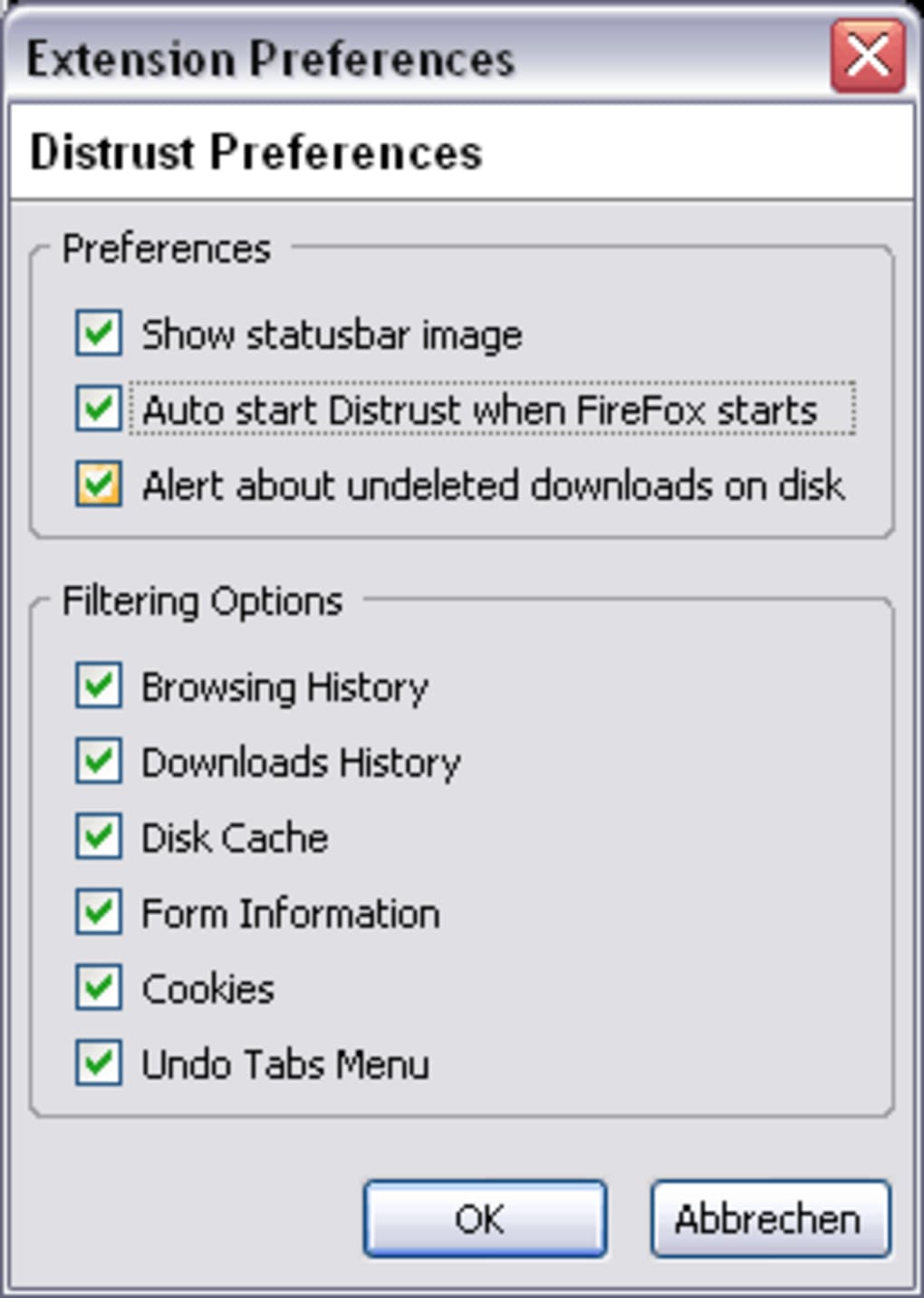
- Configure Optional Settings: Right‑click the icon and select “Options.” Here you can enable or disable the confirmation pop‑up, choose whether to clear downloads, and set a keyboard shortcut for power users.
In terms of compatibility, Distrust is built for the desktop version of Firefox on the following operating systems:
- Windows 10, 11 (both 32‑bit and 64‑bit)
- macOS 10.15 (Catalina) and later, including Apple Silicon (M1/M2)
- Linux distributions that support Firefox (Ubuntu, Fedora, Debian, etc.)
The extension does not run on Firefox for Android or iOS because those platforms restrict add‑on installations to a curated list, and Distrust has not been approved for mobile browsers. For desktop users, the extension automatically updates through the Mozilla Add‑ons ecosystem, ensuring you always have the latest security patches and compatibility fixes. If you encounter any issues after an update, the “Help” section on the add‑on page provides troubleshooting steps and a link to the developer’s GitHub repository where you can file bug reports.
Pros, Cons & Frequently Asked Questions
Pros
- Instant, one‑click cleaning saves time.
- Comprehensive data removal—including hidden cache and session files.
- Zero‑cost, ad‑free, and open‑source.
- Minimal impact on system resources.
- Regular automatic updates via Mozilla’s marketplace.
- Works across multiple Firefox profiles.
Cons
- Only available for desktop Firefox; no mobile support.
- Does not encrypt or protect data—only deletes it.
- Requires manual activation; no scheduled cleaning feature.
- Limited customization beyond the basic confirmation dialog.
- Relies on Firefox’s internal APIs, so major browser redesigns could temporarily break functionality.
FAQ
Is Distrust completely free or does it have hidden charges?
Distrust is 100 % free. There are no subscription fees, in‑app purchases, or hidden advertising. All features are available to every user after installation.
Can Distrust recover deleted data if I change my mind?
No. Once the extension deletes cache, history, and other records, the data is permanently removed from the local profile. If you need a safety net, enable the optional confirmation dialog before cleaning.
Does Distrust send any information to external servers?
No. All cleaning operations are performed locally within Firefox. The extension does not collect telemetry, analytics, or any personal data for transmission.
Will using Distrust affect my saved passwords or bookmarks?
No. Distrust specifically targets browsing history, cache, cookies, form entries, and download logs. Passwords, bookmarks, and manually saved data remain untouched.
How often does Distrust receive updates?
Updates are released whenever Firefox introduces breaking changes or when security improvements are needed. Most users see a new version within a few days of a major Firefox release.
Conclusion & Call to Action
Privacy is a personal choice, and the tools you use to protect that privacy should be both effective and unobtrusive. Distrust delivers exactly that for Firefox users on Windows, macOS, and Linux—an instant, reliable way to erase browsing traces without compromising performance or requiring a deep technical background. While it does not replace full‑disk encryption or VPN services, it fills a niche that many built‑in browser options overlook: the ability to return a shared computer to a clean state with a single click.
If you regularly switch between personal and work accounts, use public machines, or simply enjoy the peace of mind that comes with knowing your browsing history isn’t left behind, give Distrust a try. The extension is free, open‑source, and updates automatically, making it a low‑maintenance addition to your privacy toolkit. Click the “Add to Firefox” button on the official add‑on page, configure the optional confirmation prompt, and you’ll be ready to browse securely tomorrow, today.
Ready to protect your browsing privacy? Download Distrust now and experience a cleaner, more secure Firefox session with just one click.
Overall Rating: 4.5/5
Guides & Tutorials
How to install Distrust
- Click the Download button above.
- Once redirected, accept the terms and click Install.
- Wait for the Distrust download to finish on your device.
How to use Distrust
This software is primarily used for its core features described above. Open the app after installation to explore its capabilities.
User Reviews
No reviews yet. Be the first to share your experience.
You may also like
more
Llama 2
Free-to-use large language model As the new addition to Meta’s arsenal of langua...

NotebookLM
Revolutionizing the note-taking and idea-generation process NotebookLM is an exp...

Github co pilot
AI-inspired software development and coding platform GitHub Copilot is a browser...

Google Gemma
Google’s lightweight AI models Introducing Google Gemma , a family of cutting-ed...

AI Image Enlarger
A free app for Windows, by ai-image-larger. AI Image Enlarger is a free software...

DALL E
AI-driven text-to-image transformation engine DALL·E is a free graphic and desig...